Plate and customer history
Enter the plate manually or use the device camera on a screen with recognition. Confirm the result and view the registered customer's previous visits.
For car wash and detailing businesses
OtoPatron brings jobs, customer history, service prices, payments and loyalty into one business account. Follow your team's work from a browser on your phone, tablet or computer.
Online access · Business-specific records · Authorised team access
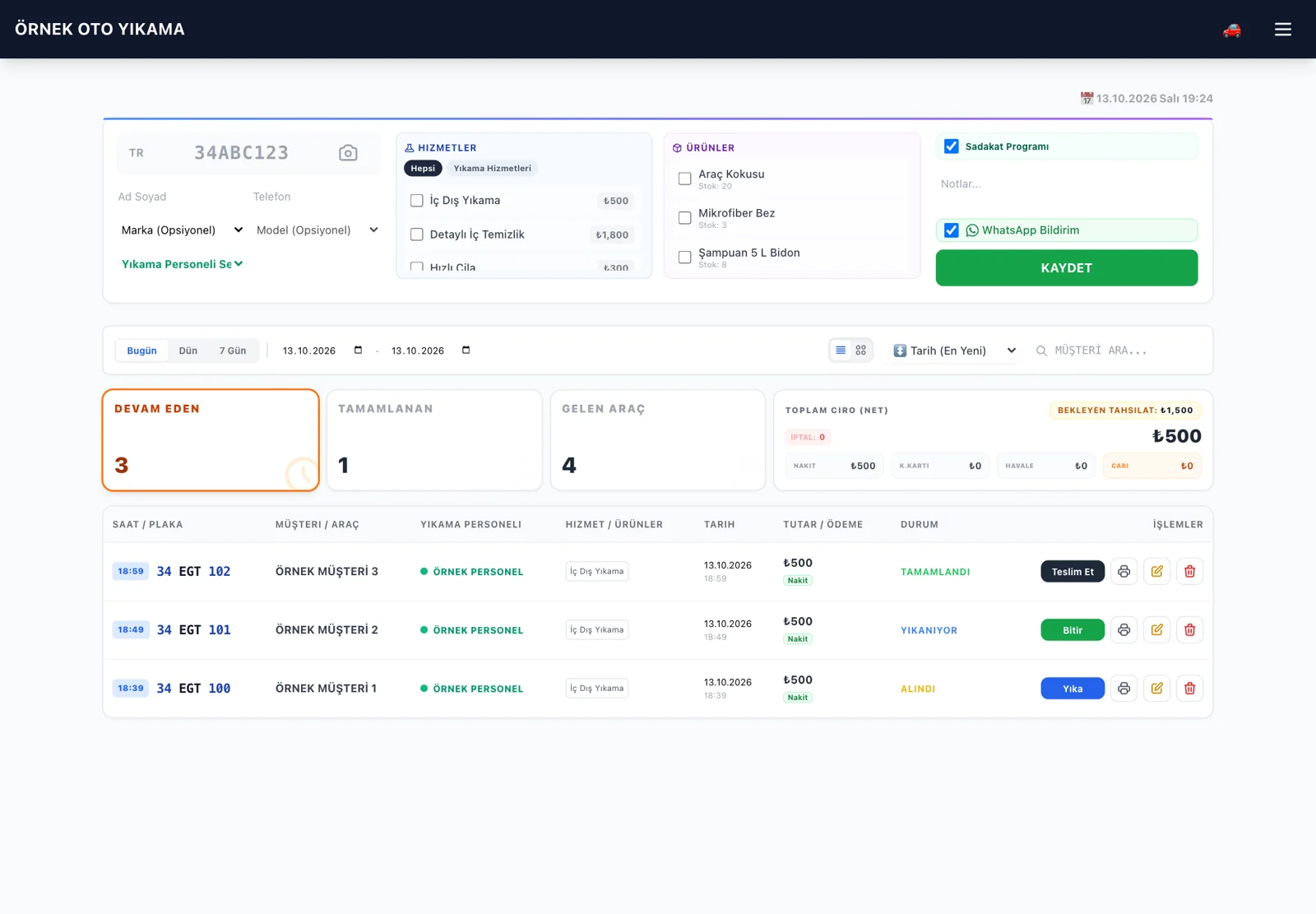
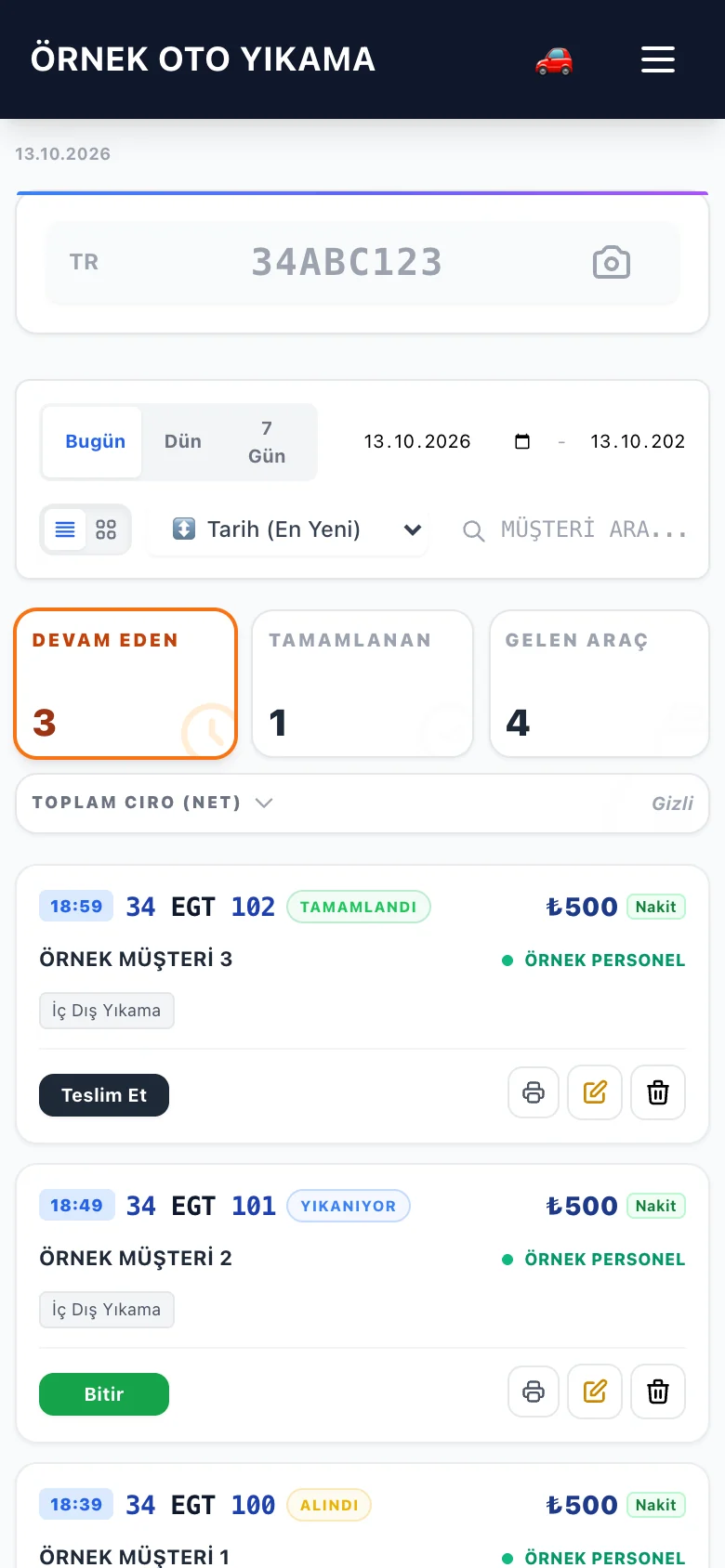
OtoPatron on your phone
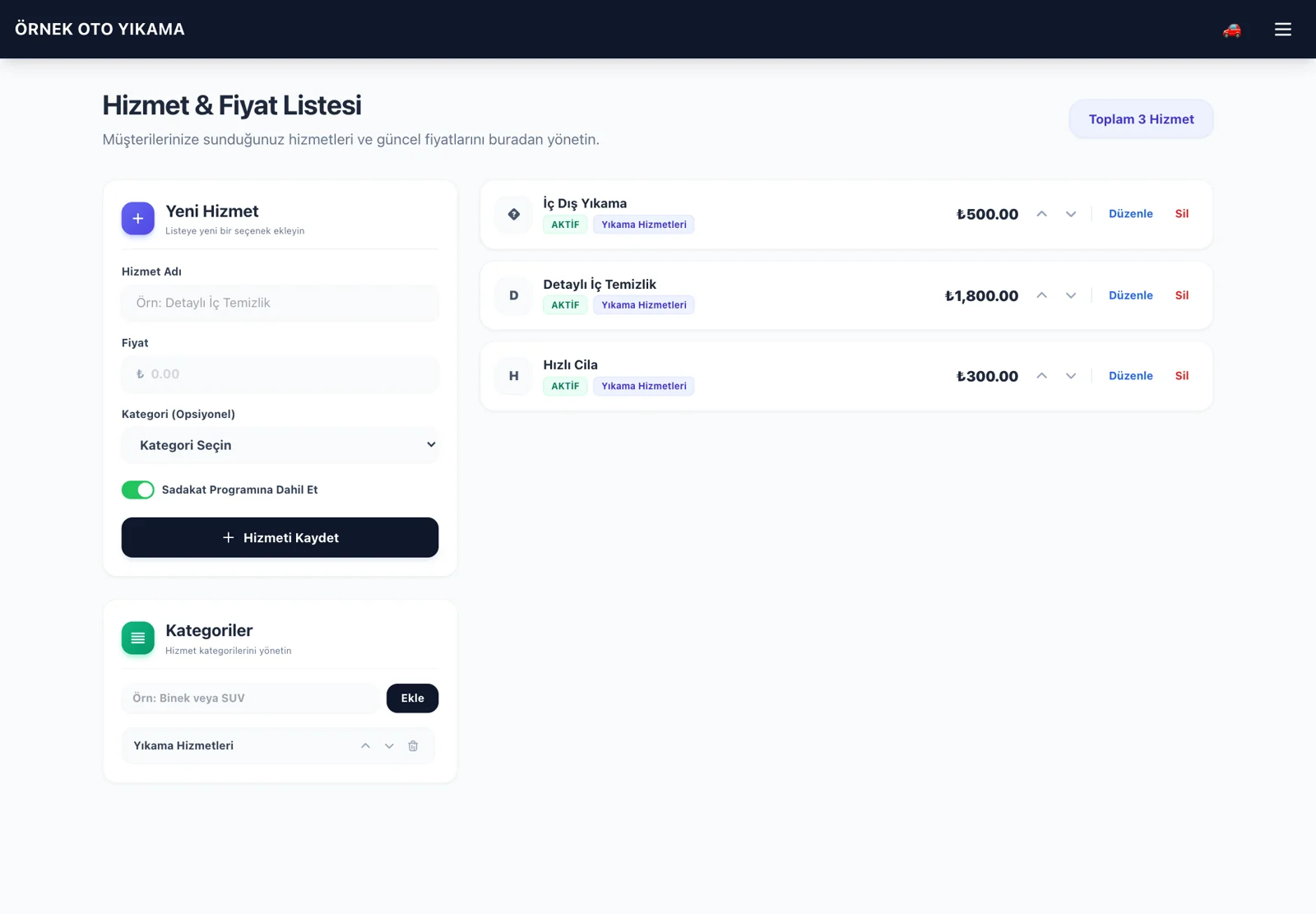
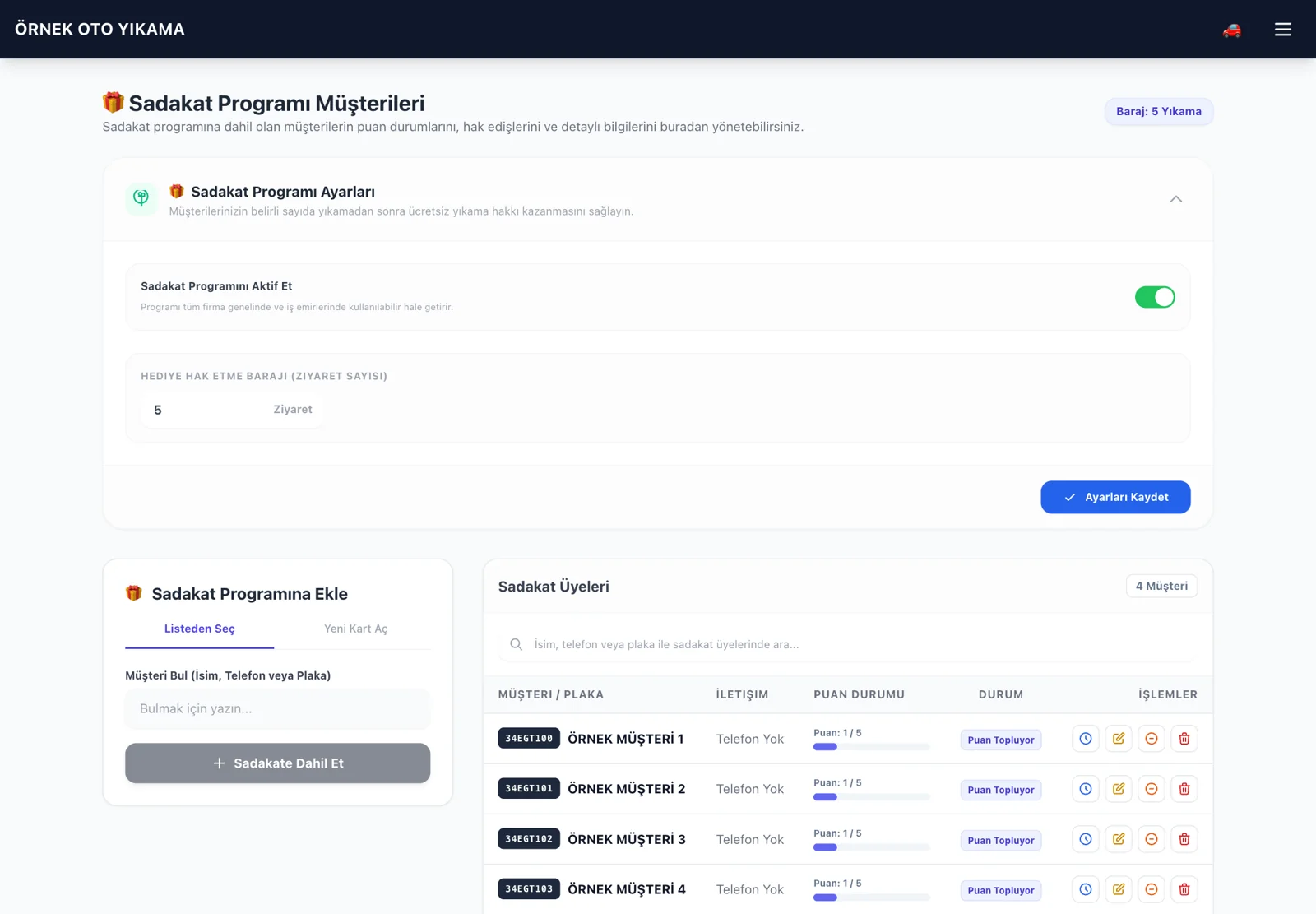
Check vehicle statuses, edit service prices and configure loyalty settings. The images below show actual OtoPatron mobile screens.
Sample business data · Tap an image to enlarge it.
See the current stage of each vehicle and manage washing and handover from its job record.
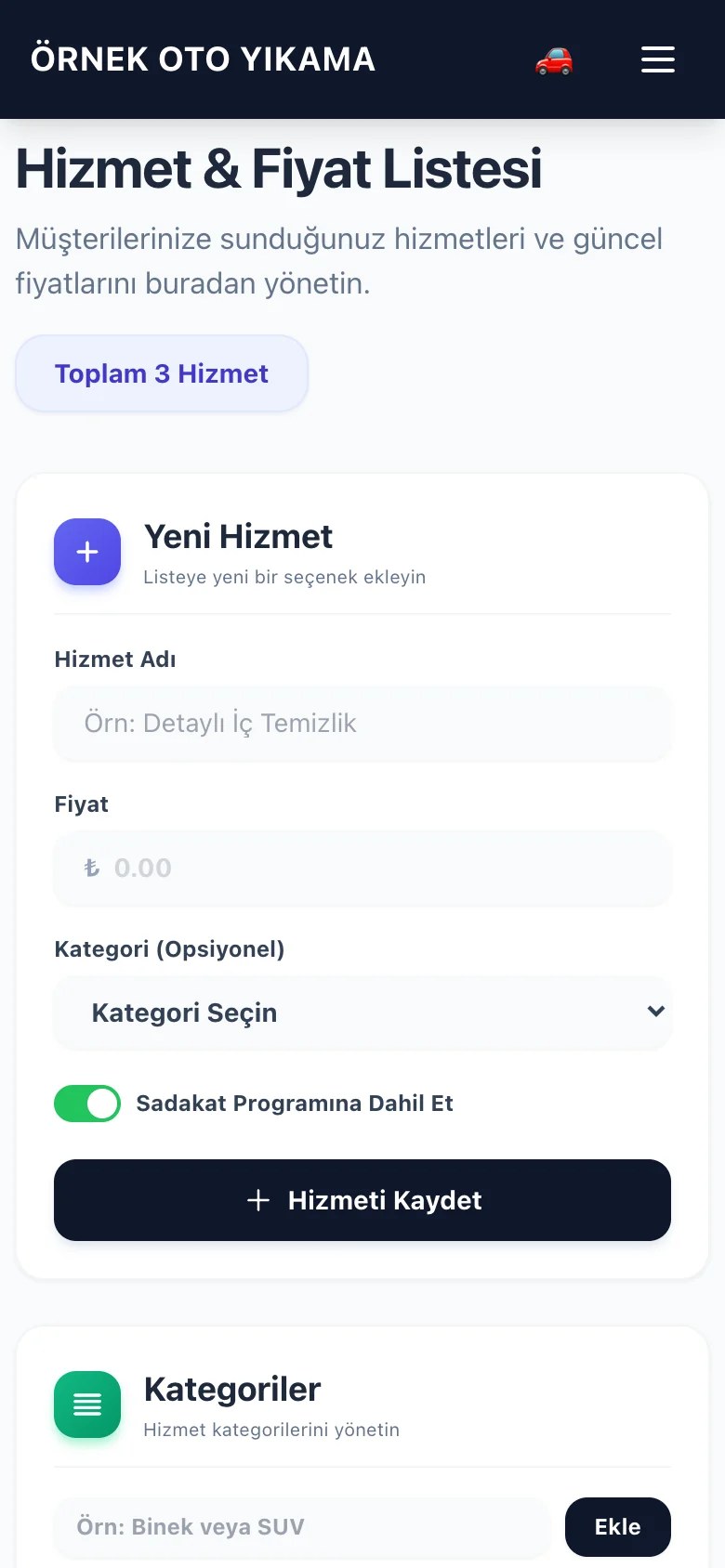
Set the service name, price and category, then choose whether it counts towards the loyalty programme.
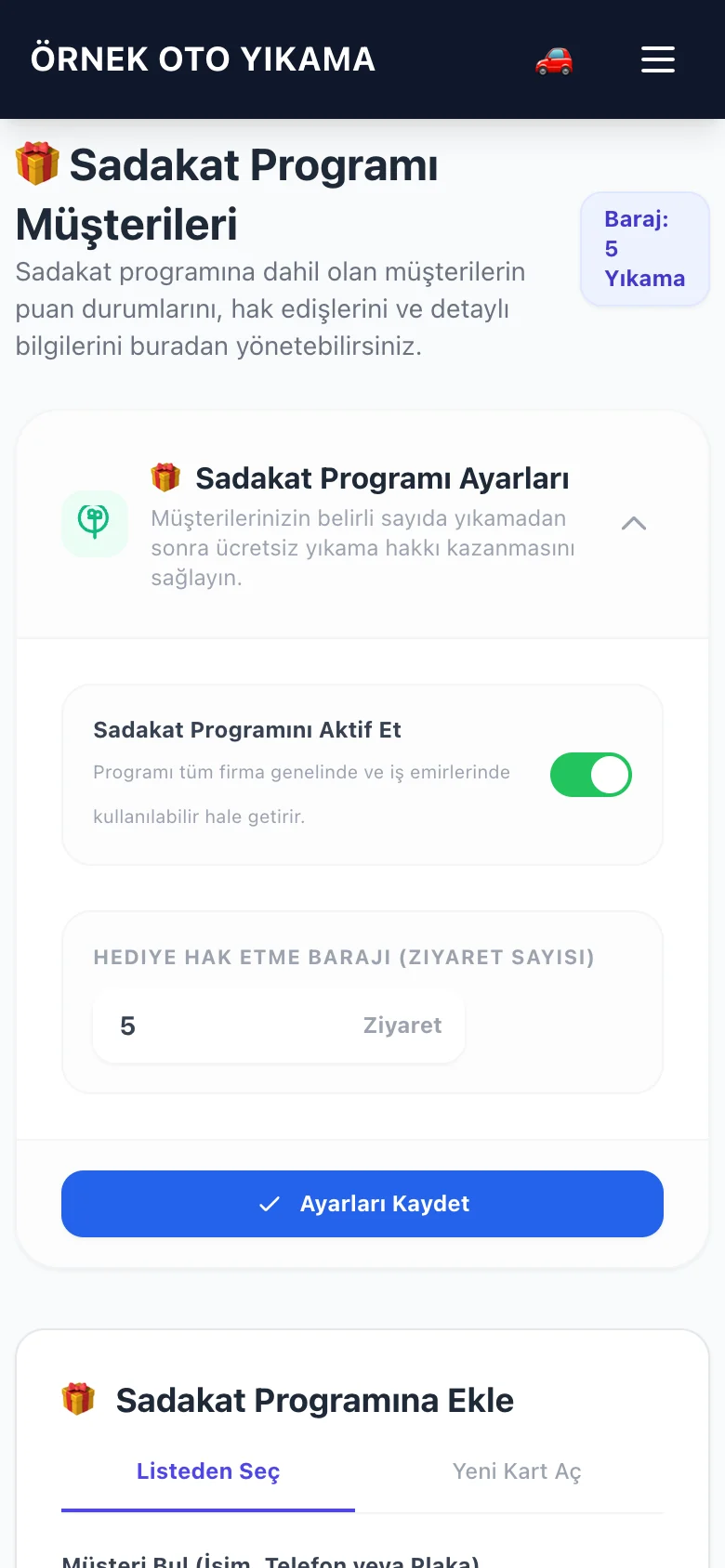
Enable the programme, set the number of visits required for a reward and save your settings.
Car wash software records the work performed from a vehicle's arrival to handover. The plate, customer, service, assigned employee, price and payment method share one job record. Owners can see work in progress, delivered vehicles and outstanding customer balances.
OtoPatron supports daily washing as well as interior detailing, polishing and vehicle care teams. Define service names and prices for your business. The car detailing workflow is also available to explore.
Consistent records help identify missed services and payment differences. Software alone cannot guarantee higher revenue or error-free operations; your team must record arrivals, update statuses and check the day-end figures consistently.
In this example, a customer requests an interior and exterior wash. Enter the plate, select the service, assign an employee and check the price. The job then follows these stages.
Confirm the plate and customer details. Add services, prices, payment method and vehicle photos if needed.
Use the Wash button when work starts. Record the assigned employee and any additional services.
Press Finish after the final check. A ready notification may be sent when the connection and permissions are enabled.
Check the final amount, payment method and actual payment. Complete the record with Deliver and open the digital receipt.
Completed and Delivered are separate statuses. Read the job and handover steps with screenshots in Turkish.
Each module serves a different need. Set up jobs for daily operations, customer accounts for deferred payments and user permissions for team access.
Enter the plate manually or use the device camera on a screen with recognition. Confirm the result and view the registered customer's previous visits.
Pair your account using a QR code or phone number. Configure message text and the job stages that trigger notifications separately.
Track corporate job balances and subsequent payments. Allocate payments to the correct account and obtain a customer statement.
Manage service prices and product quantities. Track sold items and regularly update physical counts for consumables.
Set the visit threshold and choose eligible services. Check the customer's history and the service receiving the reward before redemption.
Manage roles, pay periods, entitlement start dates and attendance. Link the employee to the job to track performance.
Grant job creation, price editing, deletion, revenue and report access according to each employee's role. Restrict access by time or shift.
Schedule customer requests, track their status and turn appointments into jobs when vehicles arrive. Check daily capacity separately.
Open a PDF receipt showing services and the amount. Compare periodic reports with cash, card, bank transfer and account records.
Prepare company details, prices and responsibilities before opening. Setup time depends on your data and team readiness. Follow this sequence to evaluate the free trial with your own workflow.
When moving from another system, confirm the customer and balance import process with support. Compare imported balances against sample accounts; do not assume every file can be imported automatically.
You can request a 7 day OtoPatron trial. Ask sales for a written quote with the current subscription price and included services. Sample service prices on this page are not software subscription fees.
Check the user and business scope, billing period, support, data transfer and WhatsApp coverage in the quote. Specify management and reporting needs for multiple branches. Do not assume branch consolidation or every integration is included in every package.
During the trial, record one cash, one card and one account job. Check customer history, stock, notifications, rewards and day-end reporting with your own operations before deciding.
Request Pricing and Trial DetailsTry your daily work when comparing paper records, spreadsheets and specialist software. Excel can be shared online, and desktop products may offer remote access. Compare actual workflows and current terms instead of generalising about an entire category.
| Check | Action to verify during the trial |
|---|---|
| Vehicle history | Enter the same plate twice. Does the correct customer and previous job appear? |
| Payment collection | Record cash, card and account jobs separately. Does the report distinguish them? |
| Team access | Try an employee account. Can it perform only authorised actions? |
| Notification | Can your own number receive a message with the correct stage and amount? |
| Data and support | Do export options, photo retention and support coverage meet your needs? |
The 27 chapter Turkish manual explains setup, daily use, troubleshooting and day-end checks step by step. Apply each topic in the relevant screen and use it to train new employees.
Published by OtoPatron · Last updated:
It tracks vehicle intake, selected services, job status, customer history and payment method in one record. OtoPatron also supports customer accounts, product stock, staff, appointments and loyalty.
Request a quote for current subscription pricing and scope. The trial lasts 7 days. Confirm user, business, support, data transfer and WhatsApp coverage before deciding.
OtoPatron runs in a browser on an internet-connected phone, tablet or computer. Screens with plate recognition can use the device camera; verify the recognised plate before saving.
Start pairing by QR code or phone number in Settings. After connecting the WhatsApp account, configure message templates and stage permissions in Profile Settings. Test delivery with your own number.
The company program must be enabled, the service must be eligible, and customer and job preferences are considered together. Set the visit threshold on the Loyalty Program screen. Check history and charges before applying a reward.
The quantity of a product sold on a job is deducted from stock. Creating a wash service does not create a recipe that automatically calculates shampoo consumption. Update consumable quantities through regular counts.
You can create a PDF receipt with transaction details. Set vehicle photo retention between 1 and 48 hours in Profile Settings; photos should not be treated as a permanent archive.
The application requires internet; use mobile data when available. Confirm how to transfer old customer, price and balance data with support beforehand. Check sample records and balances after the transfer.
Prepare your service list, open a vehicle job and follow it from intake to handover.